Passkey vs Password Manager: Do You Still Need Both in 2026?
4/26/20269 min read


Passwords have been annoying for years.
You forget them.
You reuse them.
You reset them.
Then one day, a company gets hacked and your password ends up exposed somewhere online.
That is why passkeys are getting so much attention in 2026.
Passkeys promise a simpler and safer way to sign in without typing a traditional password. Instead of remembering a password, you unlock your account with your phone, fingerprint, face scan, device PIN, or security key.
So the big question is:
If passkeys are safer, do you still need a password manager?
For most people, the answer is yes — at least for now.
Passkeys are a big step forward, but they have not replaced passwords everywhere yet. A password manager still helps you protect the many accounts that do not support passkeys, store secure notes, organize logins, and reduce the damage from reused or weak passwords.
Let’s make this simple.
What Is a Passkey?
A passkey is a newer way to sign in to an account without using a regular password.
Instead of typing something like:
Summer2026!
you approve the login using your device.
That might mean:
Face ID
fingerprint unlock
your phone screen lock
your computer PIN
a physical security key
Behind the scenes, passkeys use a secure pair of digital keys. One key stays with the website or app. The private key stays on your device or inside your passkey provider.
The important part is this:
You are not typing a password that can be stolen, reused, or tricked out of you on a fake login page.
That is why passkeys are often described as phishing-resistant. FIDO Alliance explains that passkeys help reduce phishing and credential-stuffing attacks because there are no traditional passwords for criminals to steal or reuse.
What Is a Password Manager?
A password manager is an app that creates, saves, and fills in strong passwords for you.
Instead of remembering 80 different passwords, you remember one strong master password. The password manager handles the rest.
A good password manager can help you:
create strong unique passwords
avoid reusing the same password everywhere
autofill logins safely
store secure notes
save recovery codes
share passwords with family when needed
identify weak or reused passwords
manage accounts that do not support passkeys yet
This is especially useful for beginners because the safest password is usually not one you can easily remember.
It is long, random, and unique.
Something like:
Q7!nR92v$LmT8pZ#4x
You should not have to memorize that. A password manager can do it for you.
Are Passkeys Safer Than Passwords?
In many cases, yes.
Passkeys are generally safer than traditional passwords because they are not typed into websites, cannot be reused across different accounts, and are much harder for scammers to steal through fake login pages.
The UK National Cyber Security Centre recently encouraged broader passkey adoption, saying passkeys can help protect people and organizations from phishing attacks and stolen login details.
That matters because many everyday cyber problems start with compromised logins.
A scammer does not always need to “hack” your device. Sometimes they only need your email and password from an old breach, a fake login page, or a reused password.
Passkeys reduce that risk.
But there is one catch.
Not every website supports passkeys yet.
That means most people still live in a mixed world:
some accounts use passkeys
some accounts use passwords
some accounts use two-factor authentication
some accounts still rely on weak old login systems
This is why the best answer is not “passkeys or password managers.”
The better answer is:
Use passkeys where available, and use a password manager everywhere else.
Passkey vs Password Manager: What Is the Difference?
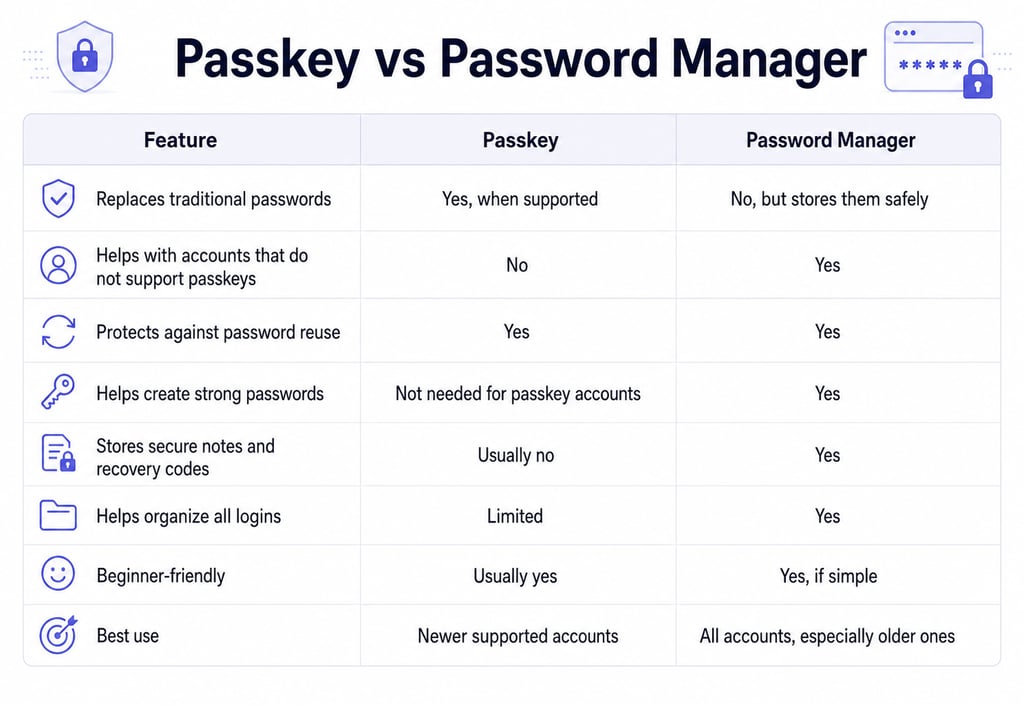
Think of it this way. A passkey is a safer login method. A password manager is a tool for managing your overall login security. They are related, but they do different jobs.
A passkey is like a safer lock. A password manager is like a secure organizer for all your keys, backup codes, and account details. You may eventually use fewer passwords. But right now, most people still need a way to manage the passwords that remain.
Do You Still Need a Password Manager With Passkeys?
Yes, most people still need a password manager in 2026.
Here’s why.
1. Many Accounts Still Do Not Support Passkeys
Passkeys are growing, but they are not universal.
Your email provider, bank, shopping accounts, work tools, streaming services, insurance portals, school apps, and medical accounts may all support different login options.
Some may offer passkeys.
Others may not.
Until passkeys are available everywhere, you still need strong, unique passwords for many accounts.
A password manager helps you avoid the most common beginner mistake: using the same password over and over.
That one habit can turn one data breach into many account takeovers.
2. Password Managers Help You Find Weak Passwords
A password manager can often show you which passwords are:
weak
reused
old
exposed in breaches
missing two-factor authentication
That is helpful because most people do not know which accounts are risky until something goes wrong.
If your password manager tells you that you reused the same password on 12 websites, you can start fixing the most important ones first.
Start with:
email
banking
phone carrier
shopping accounts
social media
cloud storage
work accounts
Your email account should usually be the first priority because it is often the recovery key for everything else.
3. Password Managers Can Store Recovery Codes
When you turn on two-factor authentication, many websites give you recovery codes.
These are backup codes you can use if you lose access to your phone or authenticator app.
Beginners often screenshot these codes or leave them in a random note.
That is risky.
A password manager gives you a safer place to store:
recovery codes
backup codes
Wi-Fi passwords
secure notes
software license keys
important account details
Passkeys make login safer, but you still need a safe place for account recovery information.
4. Some Password Managers Also Support Passkeys
This is where things get interesting.
Some modern password managers can now help you store and use passkeys too.
That means the password manager is not just for old-style passwords anymore. It can become your central place for safer sign-ins.
For beginners, that can make passkeys easier because you do not have to understand every technical detail.
You just need a simple system:
use passkeys when available
use strong passwords when passkeys are not available
keep everything organized in one trusted place
That is much easier than trying to remember which account uses which login method.
Best Beginner Setup: Use Both
Here is a simple setup that works for most people.
Step 1: Use a password manager
Choose one password manager and start moving your logins into it.
Good beginner-friendly options include tools like NordPass and Proton Pass, especially if you want something simple and privacy-focused.
Want a simpler way to stop reusing passwords? Consider trying NordPass or Proton Pass to create strong passwords, organize your logins, and prepare for passkey-based sign-ins where supported.
Step 2: Turn on passkeys for your most important accounts
Start with your highest-value accounts:
Google
Apple
Microsoft
Amazon
PayPal
banking apps
password manager account
email account
Do not worry about doing everything in one day.
Start with your email account first.
Your email is usually the “master key” for password resets. If someone gets into your email, they may be able to reset passwords for many other accounts.
Step 3: Keep two-factor authentication turned on
Passkeys are strong, but you should still follow the security settings recommended by each service.
For accounts that do not support passkeys, use two-factor authentication.
Authenticator apps are usually safer than text-message codes, but any second step is often better than only a password.
Step 4: Protect your internet connection on public Wi-Fi
A password manager and passkeys help protect your accounts.
A VPN helps protect your connection, especially on public Wi-Fi.
If you often work from coffee shops, airports, hotels, libraries, or shared networks, a VPN can add a useful privacy layer.
If you regularly use public Wi-Fi, consider using NordVPN or Proton VPN to encrypt your connection and reduce exposure on shared networks.
For more help with this, CyberCalmHome already has a beginner-friendly guide on public Wi-Fi safety that explains when public Wi-Fi is risky and how a VPN fits into your overall protection plan.
What About Proton Mail and Proton Unlimited?
If you are trying to build a more private online setup, your email account matters.
Why?
Because your email is connected to almost everything:
password resets
receipts
bank alerts
account confirmations
login notifications
personal documents
A privacy-focused email service can be a smart upgrade if you want stronger control over your personal data.
If you want a more private email and security bundle, consider Proton Mail or Proton Unlimited, especially if you also want access to Proton VPN, Proton Pass, and Proton Drive in one ecosystem.
Proton Drive may also be useful for storing sensitive personal documents, backup files, or copies of important records more privately.
Should You Buy a Security Key?
Some people may also want a physical security key.
A security key is a small device you plug in or tap to approve logins. It can be very strong protection for important accounts.
You may want one if you:
run a business
manage financial accounts
are worried about targeted attacks
help older family members secure important accounts
want stronger protection for email and password manager logins
For extra protection, you can look for a reputable FIDO2 security key on Amazon. This is optional for most beginners, but it can be a strong upgrade for your most important accounts.
For everyday users, start with a password manager and passkeys first. Add a security key later if you want stronger protection.
Common Beginner Questions
Are passkeys hard to use?
Usually, no.
Most passkeys feel similar to unlocking your phone. You may scan your face, use your fingerprint, enter your device PIN, or approve the login from another device.
The technical part happens in the background.
Can passkeys be hacked?
No security method is perfect, but passkeys remove many common password risks.
They are designed so you are not typing a reusable secret into a website. That makes them much harder to steal through fake login pages.
However, you still need to protect your device, keep software updated, and avoid approving logins you did not request.
What happens if I lose my phone?
This depends on where your passkey is stored.
Some passkeys sync through your Apple, Google, Microsoft, or password manager account. Others may be tied to one device.
Before relying on passkeys everywhere, make sure you understand your recovery options.
At minimum, keep:
account recovery codes
backup email updated
phone number updated
password manager recovery information stored safely
Should I delete all my passwords after creating passkeys?
No.
Do not rush to delete passwords unless the service clearly allows passwordless login and you understand the recovery process.
For now, it is safer to treat passkeys as an upgrade, not a reason to become careless with account recovery.
Simple Action Plan for This Week
You do not need to secure your entire digital life today.
Start here:
Day 1: Pick a password manager
Choose a trusted password manager and save your most important accounts.
Start with email, banking, Amazon, Apple, Google, Microsoft, and social media.
Day 2: Change reused passwords
Look for any password you used more than once.
Replace it with a strong unique password.
Day 3: Turn on passkeys where available
Start with your email and main device accounts.
Day 4: Save recovery codes
Store backup codes safely inside your password manager or another secure place.
Day 5: Review public Wi-Fi habits
If you use public Wi-Fi often, consider using a VPN and avoid logging into sensitive accounts on unknown networks.
Final Verdict: Passkeys Are Better, But Password Managers Still Matter
Passkeys are one of the best security upgrades for everyday people.
They are easier than memorizing passwords and much harder for scammers to steal through phishing.
But password managers are still important because passwords are not gone yet.
The smartest beginner setup in 2026 is:
Use passkeys when available. Use a password manager for everything else. Add two-factor authentication and a VPN where it makes sense.
That gives you a simple, realistic security system without needing to become a cybersecurity expert.
Keep Learning With CyberCalmHome
If this topic helped you, you may also want to read CyberCalmHome’s related beginner guides:
Best Password Managers for Beginners in 2026 — helpful if you want to compare beginner-friendly password manager options.
AI Scam Calls in 2026 — useful for learning how voice cloning scams trick families and remote workers.
Is Public WiFi Safe in 2026? — a practical guide for protecting your data on shared networks.
A calmer, safer digital life does not happen from one tool. It happens from a few simple habits repeated consistently.










Stay Connected
Questions or feedback? We’d be glad to hear from you.
Send us a message
Subscribe
© 2025. All rights reserved.
Disclaimer: Some links on this website may be affiliate links, which means CyberCalmHome may earn a commission at no extra cost to you.